VPN Providers With WireGuard: Who Runs It Natively
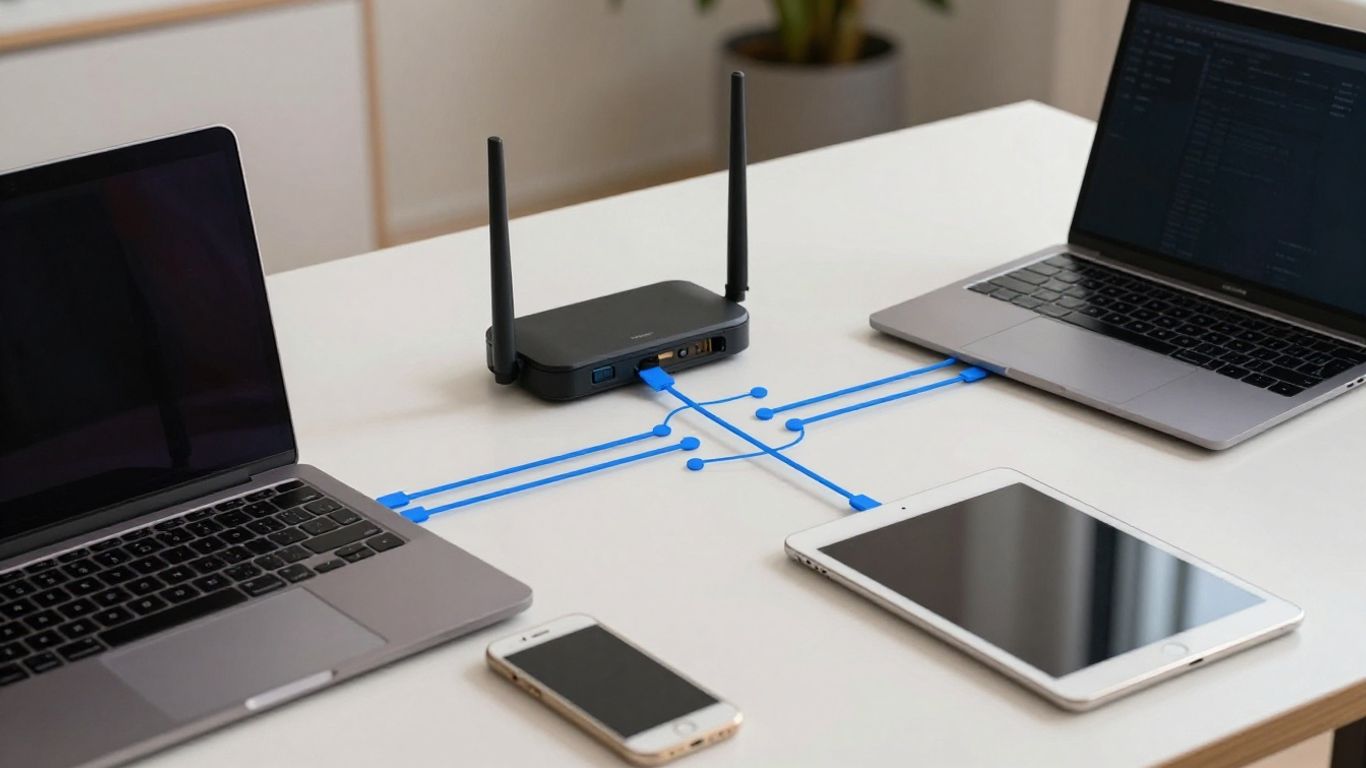
Native WireGuard support means you can select and manage the protocol inside a provider’s own application, rather than importing a profile into a separate WireGuard client. That distinction affects convenience, controls, privacy questions, and device coverage.
WireGuard in an official app is not the same as downloadable configuration files.
Mullvad, IVPN, Proton VPN, NordVPN, Surfshark, and several other services are associated with WireGuard support, but implementation details differ. For a side-by-side view, see our Private Internet Access review.
A provider’s privacy policy, key handling, DNS protection, and kill switch matter at least as much as the protocol name.
Speed depends heavily on server distance, congestion, hardware, and network conditions.
You should verify current platform coverage and limitations before choosing a subscription.
What native WireGuard support actually means
Native WireGuard support usually means the VPN provider has integrated WireGuard into its official client. You choose the protocol in the app, sign in through the provider’s normal account system, and let the application manage the tunnel. That is more convenient than building a connection by hand, but it does not automatically tell you how keys, logs, DNS requests, or failure protection are handled. That comparison is set out in the full VPN comparison.
The phrase “native” is also used rather loosely. A service may offer a polished WireGuard option on desktop and mobile while requiring manual profiles on routers. Another may use a modified implementation rather than the standard WireGuard name. You therefore need to examine the actual workflow, not just a comparison table that says “WireGuard: yes.”
WireGuard built into the provider’s official apps
When WireGuard is built into an official app, the application normally takes care of peer details, server selection, authentication, and tunnel activation. You may see a protocol selector, an automatic setting, or a connection mode that uses WireGuard without exposing every configuration field. The practical benefit is that you can connect without copying private keys or editing interface settings yourself.
An integrated client can also connect protocol selection with other app controls. Depending on the provider and platform, those controls may include a kill switch, DNS settings, split tunnelling, automatic connection, or a choice of server locations. You should treat those as separate capabilities: WireGuard itself does not provide every feature in the surrounding app.
That separation matters when you compare VPN provider rankings. A provider can support the protocol while offering a less capable client, fewer settings, or different protections on a particular operating system.
Native support versus manual configuration files
Manual support means that you obtain a WireGuard profile, import it into the official WireGuard application, and establish the tunnel yourself. The profile contains the information needed to connect to a particular VPN endpoint. This route can work well on Linux, a compatible router, or a device where the provider has no full client.
The trade-off is that you may lose provider-specific controls. Server switching can require a new profile, account-level features may not be available, and a manually imported tunnel may not include the same kill-switch or DNS behaviour as the provider’s application. You also have to think about how profiles are stored, replaced, and revoked.
Native app support is therefore mainly a usability and management distinction. It is not proof that one connection is inherently more private than another. A carefully managed manual profile can be appropriate, while an official application can still deserve scrutiny.
Provider-specific implementations and modified clients
Some services use a branded or modified protocol based on WireGuard rather than exposing the standard name throughout their software. The reason may be account management, additional privacy handling, server selection, or integration with features that are not part of the base protocol. The label alone does not reveal which changes have been made.
NordVPN is a useful example of why names need context: its NordLynx protocol is described as a modified version of WireGuard in the available search material. That does not make it interchangeable with every standard WireGuard setup, so you should read the provider’s technical explanation and check which controls remain available.
For you as a buyer, the sensible question is not whether a marketing label sounds familiar. Ask what is actually open source, what has been independently reviewed, how the client handles identity and keys, and whether the same implementation is used on every platform.
Why protocol availability can vary by platform
A provider may support WireGuard on Windows, macOS, iOS, and Android but offer a different route for Linux or routers. Operating-system permissions, app-store rules, router firmware, and the provider’s own development priorities all affect the result. Even where the protocol is available, features such as split tunnelling or a kill switch may not match across platforms.
Check the provider’s current support pages for the exact device you intend to use. “Works on mobile” is not enough if you need a manually configurable router, and “supports routers” is not enough if only one firmware family is covered. Platform coverage should be treated as a product detail, not an assumption derived from the protocol’s general availability.
Which VPN providers run WireGuard natively
Several well-known VPN services have offered WireGuard in their apps or configuration systems, but the word “native” still needs qualification. App design, account tiers, server access, and platform support can change independently of the underlying protocol. The names below are a starting point for verification, not a permanent league table. The details per service are in how the services compare.
Use the provider’s current documentation before subscribing, particularly if you need Linux, a router, a free tier, or a specific privacy control.
Mullvad and IVPN: app-first WireGuard support
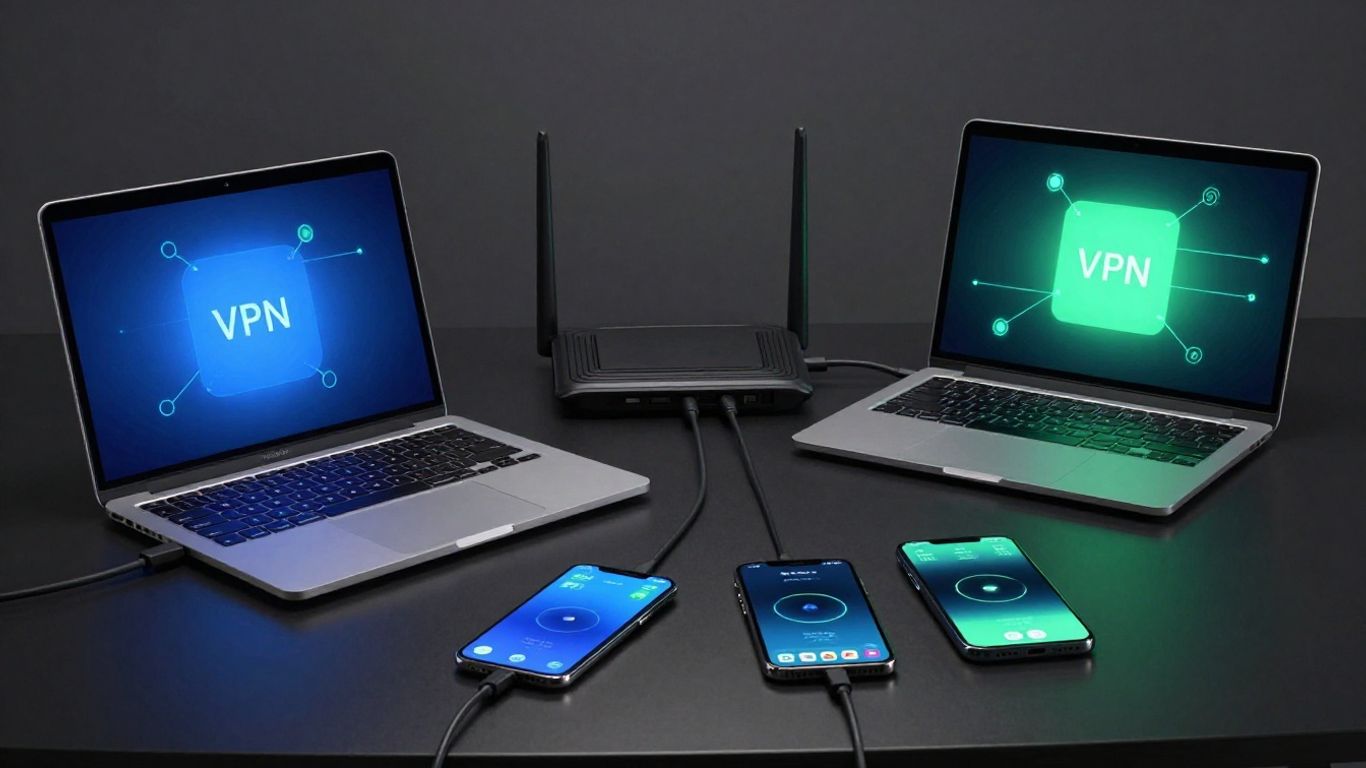
Mullvad and IVPN are commonly listed among providers offering WireGuard alongside other VPN protocols. Their presence in this category reflects the availability of WireGuard support, but the exact experience still depends on the application and device you use. You should confirm whether the setting appears in the current official client or whether a particular platform requires a manual profile.
A provider’s app-first approach is useful when you want one place to select a server, connect, and manage basic protection settings. It is less decisive if you plan to run the tunnel on a router or need detailed peer-level control. In that situation, downloadable profiles and documented router support deserve equal attention.
Proton VPN: WireGuard across apps and account tiers
Proton VPN is listed in the available material as offering WireGuard, and its documented service information discusses security protocols and features such as Secure Core, NetShield, and VPN Accelerator. Those features belong to the wider service rather than to WireGuard itself. Their availability may also vary by account tier and platform.
If you are considering this type of provider, check whether the WireGuard option is available on the plan you want and whether the accompanying privacy controls work in the official client. A protocol being present does not mean every server, feature, or performance mode is included with every subscription.
NordVPN and Surfshark: native WireGuard implementations
NordVPN and Surfshark are both associated with built-in WireGuard-based support in the available material. NordVPN presents NordLynx as its protocol, while Surfshark lists WireGuard and OpenVPN among its supported protocols. Those are different implementation and naming choices, so a direct speed or privacy conclusion should not be drawn from the shared technical ancestry alone.
The NordVPN overview is useful when you want to inspect the wider service context around NordLynx, rather than treating protocol support as the whole product. For Surfshark, the documented material describes WireGuard and OpenVPN, along with features such as RAM-only infrastructure and Bypasser; again, those surrounding features need to be assessed separately from the tunnel protocol.
Windscribe and other providers with built-in support
Some other services advertise WireGuard within their applications or account portals. Availability can change as providers redesign clients, retire protocols, or alter support for free and paid accounts. If a service is not covered clearly in current documentation, avoid treating an old review or forum comment as confirmation.
You should also distinguish “the provider can generate a WireGuard file” from “the provider has native WireGuard in its client.” Both may be useful, but they serve different needs. The former may suit a technical setup; the latter usually offers easier server management and more integrated controls.
Providers that offer WireGuard only through manual setup
A provider may expose WireGuard configuration files without placing the protocol in its own apps. That arrangement can still produce a working encrypted tunnel, but it shifts more responsibility to you. You may need to generate profiles, import them, select endpoints manually, and maintain the configuration when credentials or servers change.
Manual-only support is not automatically a weakness. It can be preferable when you want a lightweight setup or need to run a tunnel on equipment outside the provider’s supported app list. The key question is whether the limitations are acceptable for your devices and whether the provider documents key rotation, DNS behaviour, and profile security clearly.
How to verify a provider’s WireGuard claims
Verification takes only a few minutes if you check the right places. Start with the official app and support documentation, then compare those claims with the configuration-generation process. You are looking for the actual path from account login to an active tunnel, not a badge on a landing page.
A useful check also records what is unavailable. A provider may support WireGuard but restrict it to certain servers, plans, operating systems, or connection modes. Those boundaries often matter more than the headline claim.
Checking protocol controls inside official apps
Install the current official application, or inspect its published screenshots and help pages if you are still comparing services. Look for a protocol menu, an automatic protocol setting, or an explicit WireGuard or WireGuard-based option. Note whether the option is visible before connecting and whether it can be selected independently of other modes.
Then inspect the adjacent controls. Does the app expose a kill switch? Can you choose DNS behaviour? Is split tunnelling available on your device? These questions help you understand what “native” means in practice and prevent you from attributing the application’s features to WireGuard itself.
Comparing documentation with downloadable configuration files
A configuration generator is evidence that the provider can supply a WireGuard-compatible profile, but it does not establish native app integration. Compare the generated file with the provider’s app instructions. Pay attention to whether the profile includes a fixed endpoint, an expiration period, allowed IP ranges, or a device-specific key.
You should avoid publishing or sharing a profile casually. A private key is sensitive configuration data, even when the provider can revoke or replace it. Store profiles securely, remove old ones when you no longer need them, and regenerate them if you suspect that they have been exposed.
Confirming support across Windows, macOS, Linux, iOS, Android, and routers
Make a device-by-device checklist before you buy. A service that works smoothly on a laptop may require a third-party client on a router, while a mobile application may hide settings that are available on desktop. Router compatibility can depend on firmware, processor architecture, and the number of tunnels your hardware can handle.
The same principle applies to Linux. “Linux support” may mean a command-line application, a manual configuration guide, or only a generic WireGuard profile. Those are materially different experiences, especially if you want automatic updates, server search, or an integrated kill switch.
Looking for server, subscription, and feature limitations
Read the fine print around free accounts, trial accounts, streaming-optimised locations, port forwarding, and simultaneous connections. A protocol can be technically available while the servers or features you need are excluded from your plan. Some providers also limit how many profiles or active keys you can create.
A compact comparison can keep these details from blending together:
Check | What to confirm | Why it matters |
|---|---|---|
Protocol access | Standard WireGuard or a provider-specific implementation | The name may describe different technical workflows |
Platform coverage | Official apps, manual profiles, and router support | Your intended device may not receive the same client |
Account limits | Plan eligibility, keys, devices, and server access | Availability may be narrower than the headline claim |
Protection controls | Kill switch, DNS handling, and leak safeguards | These controls are not supplied automatically by WireGuard |
After making the comparison, test the exact plan and device combination you expect to use. That is more reliable than assuming that a feature listed for one application is present everywhere.
Separating current support from outdated review claims
Protocol support changes. A review from several years ago may describe a manual-only setup that has since gained app support, or it may recommend a client that is no longer maintained. Search the provider’s own documentation for a publication or update date, and check the current application version where possible.
Independent reviews can still reveal useful differences in usability and performance, but you should use them as leads rather than final proof. If a claim affects your purchase, confirm it in the current app, support centre, or configuration portal.
What native WireGuard changes for privacy and security
Native integration changes who manages the connection details, not the fundamental obligations of a VPN service. WireGuard provides a modern tunnel protocol, but the provider still operates servers, accounts, applications, and support systems around it. Privacy therefore depends on the complete service model. For a side-by-side view, see our Private Internet Access review.
You should ask what information is required to create an account, what the client sends to the provider, how connection events are handled, and what happens when the tunnel drops. Those questions are more revealing than a simple statement that WireGuard is secure.
Key generation and whether private keys leave the device
WireGuard uses cryptographic keys to identify a tunnel peer. In a native app, the provider’s software may generate and store those keys for you, while a manual setup may generate them in the WireGuard client or through a provider portal. The important detail is whether the private key remains on your device or is transmitted to the provider as part of account or profile management.
Read the provider’s technical documentation instead of guessing. A convenient setup can still be well designed, but convenience makes it harder for you to see what is happening. Look for explanations of key generation, storage, rotation, revocation, and device removal.
Account identifiers, telemetry, and connection metadata
WireGuard does not decide what account information a VPN company collects. The application may handle authentication, crash reports, diagnostics, push notifications, or analytics separately from the encrypted tunnel. Your privacy assessment must cover those processes as well as the server-side logging policy.
Review the privacy policy for definitions of connection timestamps, source IP addresses, bandwidth, device identifiers, and aggregated diagnostics. Policies can be broad or technical, so look for retention periods and disclosures to service providers rather than stopping at a “no logs” headline.
Kill switches, DNS handling, and leak protection
A tunnel that disconnects is not necessarily a privacy failure, but traffic can escape through the ordinary connection if the application does not block it. A kill switch is designed to address that risk, while DNS handling determines where hostname lookups are sent. Both controls are implemented around the VPN connection and should not be credited to WireGuard alone.
Test them instead of assuming they work. Disconnect the tunnel, change networks, and check whether traffic and DNS requests behave as the application says they should. On a router, inspect the firewall rules and fallback routes because the provider’s desktop protection may not exist in a manual setup.
Auditing open-source clients and published security reviews
WireGuard’s public technical design is one part of the review process. You should also examine the provider’s client source code where it is published, independent audits, vulnerability disclosures, and explanations of how the service operates its infrastructure. An open-source component is useful for inspection, but it does not audit the provider’s entire business or server environment.
Give more weight to specific reports than to vague badges. A meaningful review identifies scope, testing dates, limitations, and whether material findings were addressed. That approach helps you separate evidence about the protocol from evidence about the company operating it.
The limits of WireGuard’s privacy model
WireGuard encrypts traffic between peers, but it does not make you anonymous by itself. The VPN provider can still associate account activity with server use according to its systems and policies, and websites can identify you through cookies, logins, browser fingerprinting, or other methods. A VPN also cannot protect an endpoint that is already compromised.
Treat WireGuard as one layer in a privacy setup. Use sensible account separation, keep devices updated, and understand what information you voluntarily provide to websites and applications. Protocol choice is only one layer of the decision.
How WireGuard affects speed and reliability
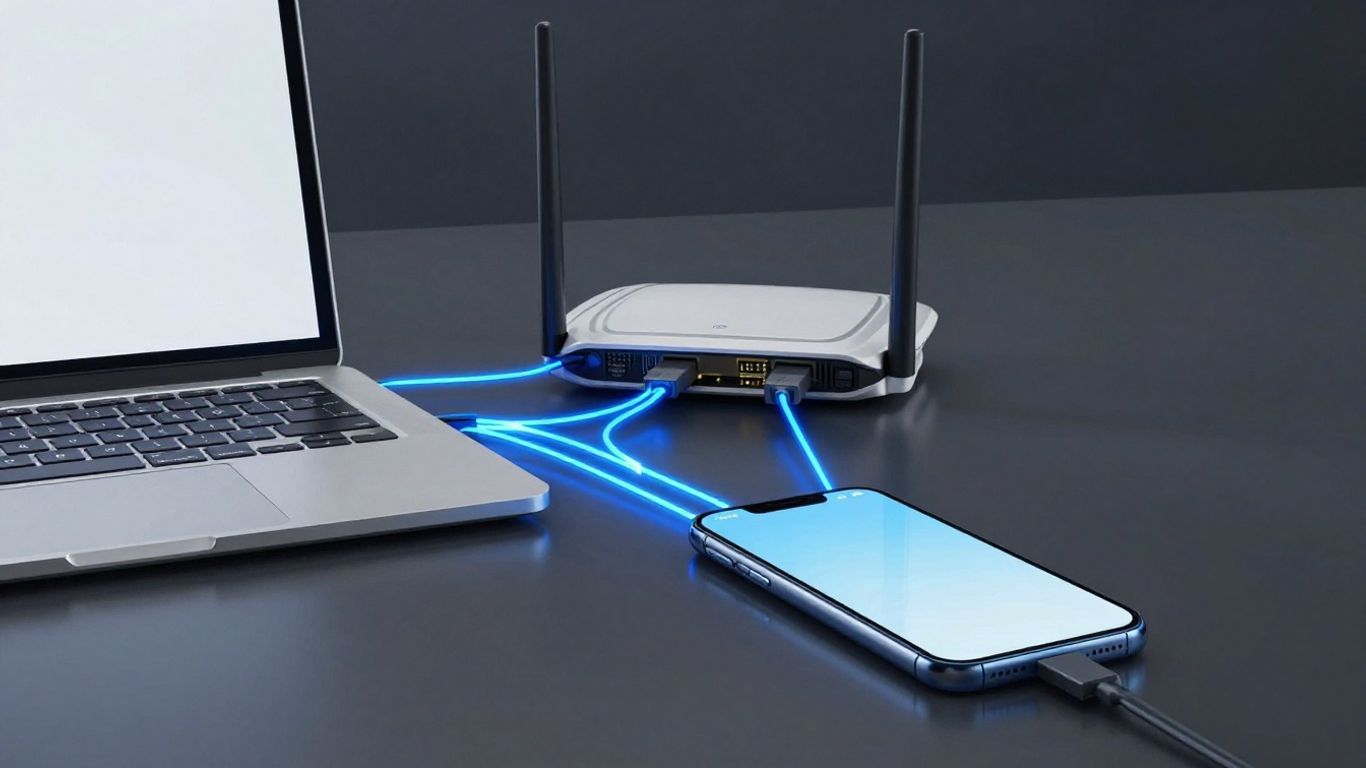
WireGuard often performs well because its design is comparatively streamlined, but speed tests are easy to overinterpret. Your result depends on the VPN server, the route to that server, local congestion, the access network, and the device doing the encryption. A protocol comparison made in one city at one time may not predict your everyday experience.
Reliability has a similar shape. A fast connection that fails during Wi-Fi roaming is not useful for a mobile worker, while a slower but stable connection may suit ordinary browsing better. Test the conditions that match your own use.
Why WireGuard often reduces connection overhead
WireGuard is designed as a lean VPN protocol with a comparatively small codebase and modern cryptographic primitives. In practical terms, that can mean less processing and connection overhead than some older alternatives, particularly on mobile hardware. It is a tendency, not a guaranteed result for every provider or route.
The provider’s implementation also matters. Server capacity, application quality, packet handling, and the distance between you and the endpoint can erase a theoretical advantage. Compare like with like: the same server region, device, network, and test time.
When server distance and congestion matter more than protocol choice
A nearby, lightly loaded server can outperform a distant server using the same protocol by a wide margin. International routes may add latency, and busy gateways may reduce throughput during peak periods. If a service gives you few nearby locations, changing protocol may not solve the underlying problem.
Start troubleshooting with the basics. Try another nearby endpoint, compare wired and wireless connections, and repeat the test at different times. This gives you a better explanation for poor performance than simply labelling the protocol slow.
Roaming between networks and handling changing IP addresses
Mobile devices regularly move between Wi-Fi and cellular networks. WireGuard is designed to handle peer endpoint changes in a way that can make roaming feel less disruptive, but the user experience still depends on the application, operating system, NAT behaviour, and the network you join. A restrictive public network can interfere with any VPN protocol.
If connections drop during movement, check whether the app has an automatic reconnect option and whether battery-saving rules are suspending it. On a manual setup, examine persistent keepalive and routing settings only when the provider’s documentation recommends them; arbitrary changes can create new failures.
Performance trade-offs on older devices and routers
Encryption consumes resources. A modern laptop may handle a VPN connection without noticeable strain, while an older phone or inexpensive router can become the bottleneck. Router performance is especially sensitive to firmware, CPU capacity, Wi-Fi throughput, and whether traffic is being processed in hardware or software.
For a home network, measure performance from a device behind the router rather than relying only on the router’s advertised specifications. If the VPN reduces throughput substantially, compare a direct connection, a nearby endpoint, and a different tunnel mode before replacing equipment.
How to test real-world speeds without overstating results
Run several tests rather than relying on one screenshot. Record the access connection, device, server location, protocol, latency, download speed, upload speed, and time of day. Repeat the same sequence without the VPN so you have a baseline.
A short testing routine can be more useful than a dramatic headline:
Test your normal connection without a VPN.
Connect to a nearby VPN server and repeat the test.
Test a second nearby server at a different time.
Try the locations and applications that matter to you.
Interpret the pattern, not the best individual number. Streaming stability, video-call latency, downloads, and ordinary browsing place different demands on a VPN connection.
Using native WireGuard on different devices
The easiest setup is usually the provider’s official client on a supported operating system. You sign in, choose the available WireGuard option, select a server, and check the application’s protection settings. More specialised environments, including Linux systems and routers, may require a profile or command-line configuration.
Your goal is a connection you can maintain safely, not merely one that works once. Keep track of which application controls the tunnel, where the configuration is stored, and how you will update or revoke it later.
Installing and configuring the provider’s official client
Download the application from the provider or the official app store, then confirm that the publisher and package are correct. After signing in, find the protocol control and select WireGuard or the provider’s documented WireGuard-based mode. Enable the relevant connection-blocking and DNS settings before you begin normal browsing.
Do not assume that the default server is the best one for your location. Start with a nearby endpoint, then check for handshake status, an assigned VPN address, and ordinary DNS and IP-leak results. If the app has an automatic mode, note whether it selects WireGuard or another protocol.
Setting up WireGuard on Linux and supported routers
On Linux or a router, follow the provider’s current instructions for generating and importing a profile. Confirm that the profile is intended for your firmware and that the provider explains how to update endpoints, credentials, and keys. A generic WireGuard guide may not cover the firewall and DNS rules needed for a full-device setup.
After importing the profile, verify routing from more than one client behind the router. Check IPv4 and IPv6 behaviour separately if both are enabled, and test what happens when the tunnel is unavailable. A router configuration without a fail-closed rule can leave connected devices using the ordinary internet connection.
Using manual profiles when the native app lacks a feature
A manual profile can be a practical fallback when the official client does not support your device or when you need a specific routing arrangement. It can also give you more direct control over endpoints and allowed IPs. The cost is additional maintenance and fewer integrated safeguards.
Keep a record of the profile’s creation date and intended device, but do not store private keys in an exposed document or paste them into support forums. When a provider offers a revocation or profile-removal function, use it for devices you no longer control.
Managing multiple devices, keys, and configuration limits
Every device or profile adds an administrative task. Providers may count simultaneous connections, registered devices, generated keys, or active sessions differently. Read the account rules rather than assuming that a subscription with many connections permits unlimited manual profiles.
Use clear local names for profiles and remove duplicates. When a device is sold, lost, or retired, revoke its credentials where possible. This is basic account hygiene, but it is easy to overlook when a provider’s app handles everything automatically on your first device.
Troubleshooting handshake, DNS, and connectivity failures
A failed handshake means the tunnel has not successfully established communication with its peer. Check the system clock, internet connection, endpoint address, firewall, and whether the profile has expired. If the tunnel connects but websites fail, inspect DNS settings and routes rather than repeatedly regenerating keys.
Change one variable at a time so you can identify the cause. Try another server, disable conflicting VPN software, check router timeouts, and compare the same profile on a different network. If only one network blocks the connection, the issue may be local filtering rather than a defective WireGuard installation.
How to choose among VPN providers with WireGuard
The best choice is rarely the provider with the most prominent WireGuard badge. You need to match the service’s privacy practices and application controls to your devices, threat model, budget, and reason for using a VPN. For many people, a dependable client and clear policy are more valuable than a small difference in a controlled speed test.
Make a shortlist only after separating verified facts from assumptions. The following checks keep the decision grounded in what you can actually use.
Prioritising privacy policies over protocol branding
Read what the provider says it collects, how long it retains information, and which third parties process it. Look for a clear explanation of account data, diagnostics, payment information, connection records, and deletion requests. WireGuard can protect traffic in transit without answering any of those questions.
Also consider your own use. If you need a VPN mainly on public Wi-Fi, leak protection and automatic connection may matter most. If you need a router, key management and firewall documentation may matter more than a polished mobile interface.
Comparing native app quality, platform coverage, and controls
Test the application where possible before committing to a long subscription. Check how easily you can change servers, select the protocol, pause or reconnect, and configure a kill switch. Then compare that experience with the operating systems and routers you actually own.
A service with broad support on paper may still be inconvenient if one essential device relies on a manual profile. Read the provider’s platform-specific documentation and look for known differences between desktop, mobile, Linux, and router deployments.
Checking independent audits, ownership, and transparency records
Independent audits can provide useful evidence about a narrow scope, such as an application, infrastructure process, or stated logging practice. They are not a universal guarantee. Check who commissioned the work, what was tested, when it was completed, and whether follow-up information is available.
Ownership and jurisdiction also belong in the review, although neither gives you a complete privacy answer on its own. Combine those facts with the privacy policy, transparency reports, security disclosures, and the provider’s record of responding to vulnerabilities.
Evaluating price, server access, and simultaneous connections
Price should be compared with the service you will actually receive. Check renewal pricing, refund conditions, server locations, account limits, and whether the plan includes the platforms you need. A low introductory price is less useful if the router support or nearby server access you require is excluded.
Do not treat a large server count as a direct speed promise. Location, capacity, routing, and congestion determine the connection you experience. The same caution applies to simultaneous connections: understand whether the limit covers accounts, devices, sessions, or manual keys.
Building a practical WireGuard provider shortlist
Begin with three or four candidates that meet your non-negotiable requirements. Verify each one using the same questions, then run a short real-world test on the devices that matter. You can use a broader VPN comparison guide as a starting point, but confirm current technical details directly with each provider before paying.
Remove any candidate that fails a hard requirement, such as missing router support or unclear access to the needed protocol. Among the remaining options, choose the service whose privacy documentation, application behaviour, and support model you can understand and maintain. That is a more defensible decision than selecting a name solely because it appears on a “fastest WireGuard VPN” list.
Conclusion
VPN providers with WireGuard are not interchangeable: native app support, manual profiles, privacy policies, platform coverage, and reliability all change the practical result. Verify the exact setup you need, test it under ordinary conditions, and judge the complete service rather than the protocol label alone.
Frequently Asked Questions
Is WireGuard a VPN provider?
No. WireGuard is a VPN protocol used by providers and self-managed systems to create an encrypted tunnel. The provider still supplies servers, account management, applications, and policies around that protocol.
Is native WireGuard better than a manual WireGuard profile?
Native support is usually easier to configure and may connect protocol selection with features such as server switching and leak protection. A manual profile can offer more control or work on devices without an official app, but it requires more maintenance.
Does WireGuard make a VPN anonymous?
No. WireGuard protects traffic between your device and the VPN endpoint, but websites can still identify you through accounts, cookies, fingerprinting, and other signals. The VPN provider’s own data practices also remain relevant.
Does WireGuard always provide faster VPN speeds?
No. WireGuard often has low connection overhead, but server distance, congestion, routing, hardware, and the access network can matter more. You should test the same locations and conditions before drawing a conclusion.
Can you use WireGuard on a router?
Often, yes, if the router firmware and provider support it. You may need to import a manual profile and create firewall and DNS rules yourself. Confirm the exact model, firmware, and fail-closed behaviour before routing a whole network through it.
How can you check whether a VPN is really using WireGuard?
Look for the active protocol in the official application, connection details, or provider documentation. With a manual setup, inspect the profile and the WireGuard client status. Do not rely only on a marketing page or an old review.
What should you check before choosing a WireGuard VPN?
Check privacy and logging policies, key handling, platform coverage, kill-switch and DNS controls, server access, account limits, pricing, and independent security evidence. Select the provider that meets your actual device and privacy requirements, not merely the one with the strongest protocol branding.
If you make a purchase via one of these links, we may earn a commission, at no extra cost to you. Learn More