ExpressVPN on a Router: Setup, Limits and When It Is Worth It
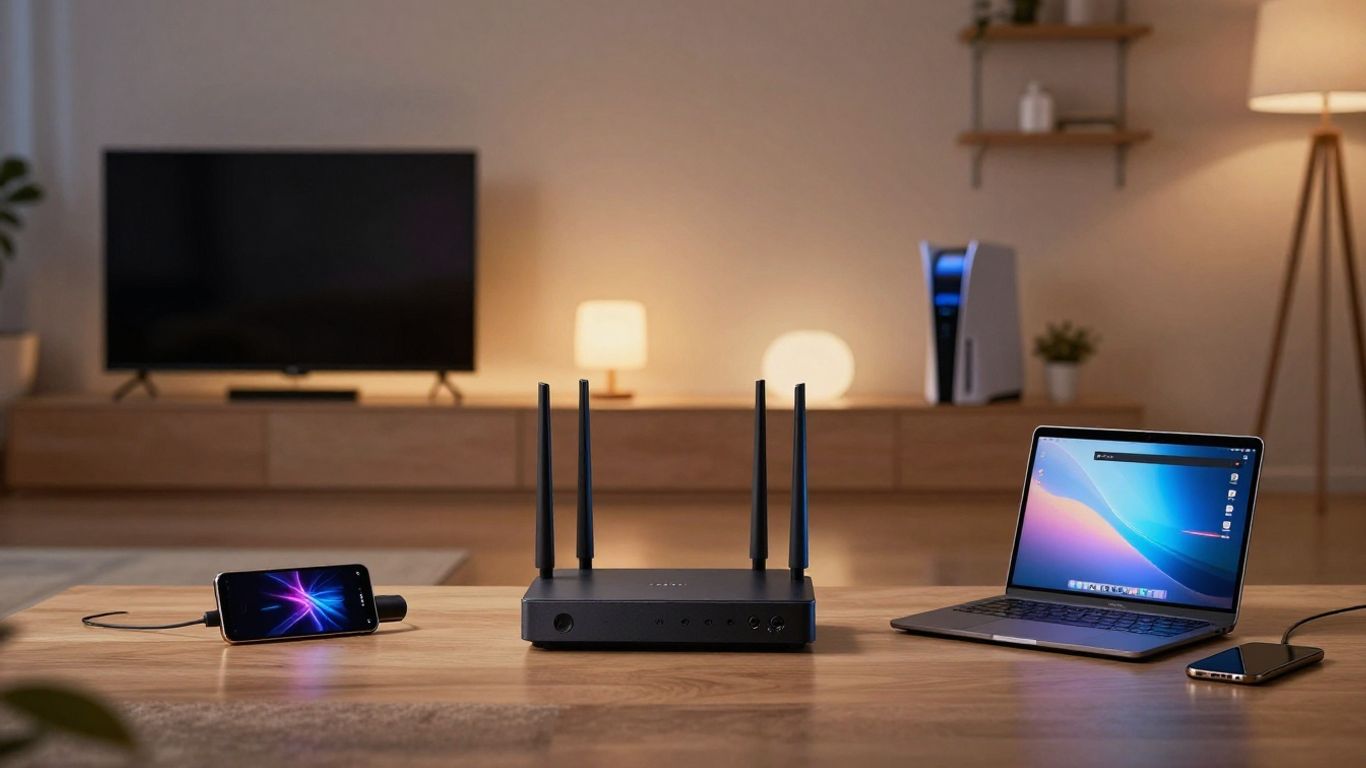
A router-based VPN can cover devices that do not support VPN apps, but it also changes how you manage speed, routing, and local network access. That comparison is set out in what we write about ExpressVPN.
A VPN router sends connected devices through one encrypted VPN connection.
Compatibility depends on the router, firmware, gateway arrangement, and protocol support.
Router-level coverage is convenient, but it may reduce speed and increase latency.
Split tunneling, guest networks, DNS, IPv6, and kill-switch settings need checking.
Individual apps are often simpler when you need different locations or selective protection.
What ExpressVPN on a router changes, and what it does not
An expressvpn router setup places the VPN connection at the network gateway rather than on one phone, computer, or television. Devices connected through that gateway can then use the VPN without each device running a separate application. That sounds comprehensive, but it is not the same as protecting every kind of activity or solving every household networking problem. What each provider claims about this is covered in the individual VPN reviews.
How router-level VPN protection covers connected devices
When the router successfully connects to a VPN server, it routes network traffic from the relevant connected devices through an encrypted tunnel. External websites generally see the VPN server’s public IP address instead of the household connection’s address. The practical benefit is that the router can extend VPN coverage to equipment that cannot install a conventional VPN app.
The word “relevant” matters. Some routers apply the connection to the entire network, while others allow you to select devices or groups. You should confirm the actual routing behavior in the administration interface instead of assuming that joining the Wi-Fi automatically means every packet uses the tunnel.
Which devices benefit most from a router connection
A router connection is most useful for devices with limited software support. Smart TVs, streaming boxes, game consoles, printers, cameras, and some smart-home products may not offer a native VPN client. Connecting them through a configured router can avoid the awkward alternatives of sharing a connection from a computer or trying to install unsupported software.
It can also simplify a household with several fixed devices. You configure the gateway once, then those devices inherit the network route. That convenience is less compelling for a laptop or phone that already supports a mature app and frequently moves between home, work, and public Wi-Fi.
What a router VPN cannot hide or protect
A router VPN does not make you anonymous. The VPN provider can still process the connection according to its policies, and websites can identify you through accounts, cookies, browser signals, or other data. A VPN also does not remove malware from a device, correct insecure smart-home firmware, or prevent a service from blocking VPN traffic.
Local risks remain too. A compromised device on your network may still communicate with other devices unless your router’s isolation rules limit that access. A router tunnel also does not protect a device when it leaves the home network unless that device uses a separate VPN connection.
How router VPN use differs from installing the ExpressVPN app
A router setup centralizes the connection. You do not need to open an app on every supported device, but you may have fewer controls per device and fewer convenient ways to change locations. An app usually travels with your device and can expose features that a particular router firmware does not provide.
This is why you should compare the whole household rather than asking which method is universally better. A fixed television may benefit from gateway-level routing, while a phone used on cellular data still needs its own arrangement. For background on the wider service, you can read this ExpressVPN review, then check the router-specific documentation for your hardware.
Check compatibility before starting an ExpressVPN router setup
Compatibility is the first real step, not an administrative detail after you subscribe. A router must support acting as a VPN client, and its firmware must accept the protocol and configuration format you intend to use. Your modem, ISP gateway, Wi-Fi layout, and internet speed can also change whether the result is stable enough for daily use. What each provider states about this is covered in the full VPN comparison.
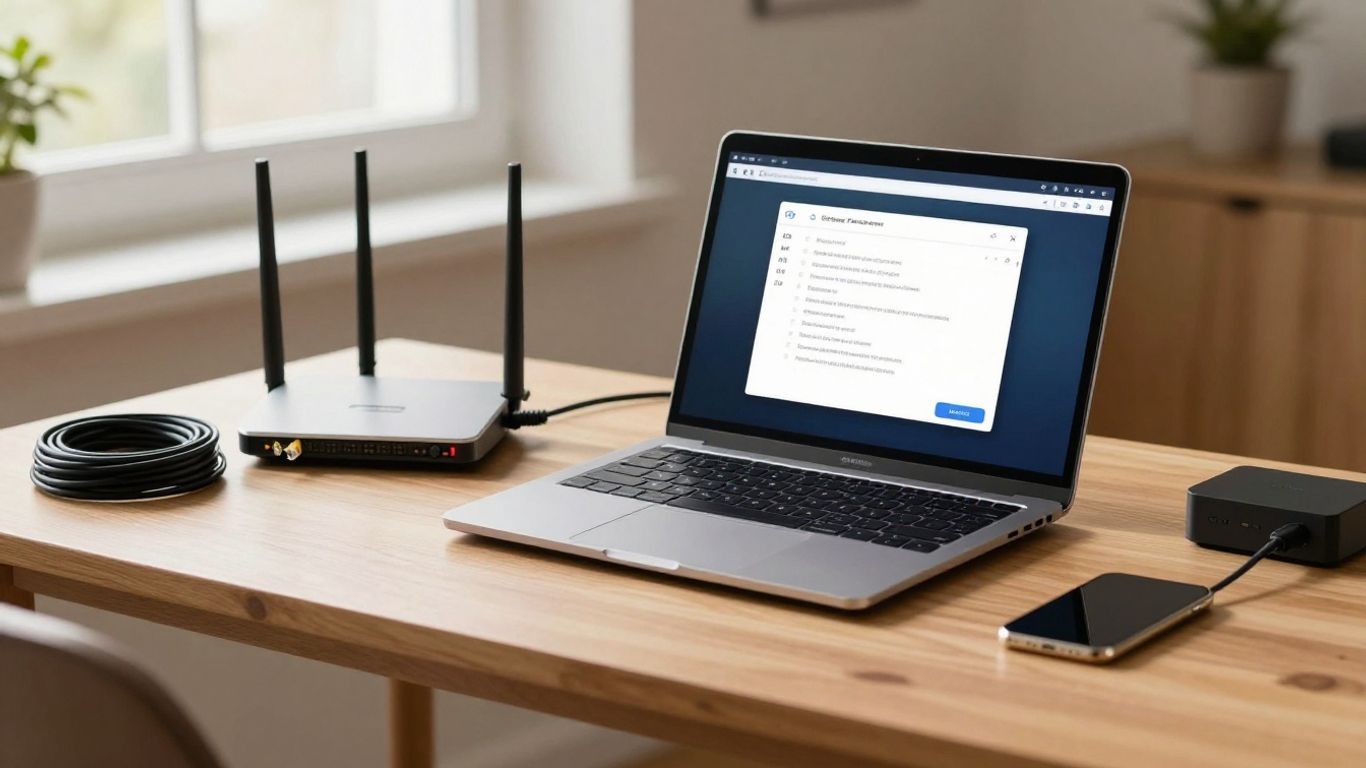
Supported routers, firmware, and ExpressVPN hardware options
Start with the exact router model and firmware version, including regional variants. Two products with similar names may have different hardware or software support. Look for VPN-client functionality, supported protocols, configuration import options, and documented instructions from the manufacturer or service provider.
If you are buying hardware specifically for this purpose, a compatible router or a dedicated VPN-oriented device may reduce setup work. Do not treat a product label as proof that every desired feature is available. Check whether it supports whole-network routing, device groups, location switching, local access, and a kill switch before purchasing.
How router performance affects VPN speed
VPN encryption and packet processing use router resources. An older or entry-level router may handle ordinary browsing comfortably but struggle when several devices stream, upload files, back up photos, or make video calls at once. Your internet plan sets an upper boundary, but the router can become the bottleneck below that boundary.
Test under realistic conditions rather than relying on an empty-network speed test. Measure download and upload performance with the VPN disconnected and connected, then repeat while other household devices are active. A small loss may be acceptable; a large loss or unstable latency may make router-level coverage frustrating.
Modem, gateway, and ISP compatibility considerations
Many homes use one ISP-supplied gateway for the modem, router, Wi-Fi, and firewall. Adding a second VPN-capable router can create double network address translation, separate subnets, and confusing device discovery. Those issues are manageable, but you need to decide which device controls DHCP, Wi-Fi, port forwarding, and local-network rules.
Bridge or passthrough modes may be available, but their names and behavior vary by provider and model. Changing them can affect television, telephone, or other bundled services. Record the original settings first and consult the ISP’s documentation before altering the gateway.
When flashing third-party firmware creates unnecessary risk
Installing third-party firmware can add VPN-client features, but it is not a harmless shortcut. A failed flash, incompatible build, or lost configuration can leave you without internet access and may complicate support. You may also have to maintain security updates yourself.
Use that route only when the hardware is explicitly supported and you understand recovery procedures. If a compatible router already meets your needs, paying for simpler hardware can be more sensible than turning a routine network change into a repair project.
Choose the right ExpressVPN router setup method
There is no single best method for every home. Your choice depends on whether you need all devices covered, whether you want different routes for different users, and how much network administration you are willing to do. Consider the least complicated approach that meets your actual device mix.
Using an ExpressVPN-compatible router or Aircove
A compatible router or dedicated option is generally the most straightforward path when you want router-level coverage without modifying unsupported hardware. The appeal is practical: the device is designed around the required VPN workflow, so you spend less time translating generic instructions into model-specific settings.
Even then, review the control model before buying. Check how locations are selected, whether device groups are available, how local devices remain reachable, and what happens if the tunnel drops. Convenience is valuable only when the controls match your household.
Configuring ExpressVPN manually on a supported router
Manual configuration can work well when your existing router already supports a VPN client and you are comfortable with its administration panel. You will usually need provider-supplied server information, credentials or keys, a protocol choice, and routing or DNS settings. The exact fields differ widely between firmware platforms.
Save screenshots or notes as you proceed. A setting that looks minor, such as a remote gateway option, route policy, or DNS toggle, can determine whether clients connect reliably. Follow instructions for the precise firmware version, not merely the router family.
Using a second VPN router behind the main gateway
A second router lets you preserve the ISP gateway for ordinary traffic while directing selected devices through the VPN router. You can place a television, console, or workstream on the VPN router and leave other devices on the original network. This arrangement is often useful when replacing the main gateway is impractical.
The trade-off is a more complicated topology. Devices attached to different routers may not automatically discover one another, so printers, media servers, and smart-home controllers can behave unpredictably. Draw the network before you connect anything: identify each router’s subnet, DHCP role, and intended clients.
Choosing per-device apps instead of router-level coverage
Individual apps are usually more practical when your devices move around, need different VPN locations, or require frequent exceptions. They also let you troubleshoot one device without interrupting everyone else’s connection. For a household made mostly of phones and laptops, centralizing the VPN may add little value.
Router-level coverage becomes more attractive when several fixed devices lack app support. You can also combine approaches: use the router for selected stationary equipment and applications for mobile devices. That mixed model often gives you more control than forcing one route on the entire home.
How to complete an ExpressVPN router setup
Treat setup as a controlled network change. Before you begin, identify which devices should use the VPN, which must remain on the ordinary connection, and which local services need to keep working. Make changes when you can briefly tolerate an interruption, and keep a way to restore the previous configuration.
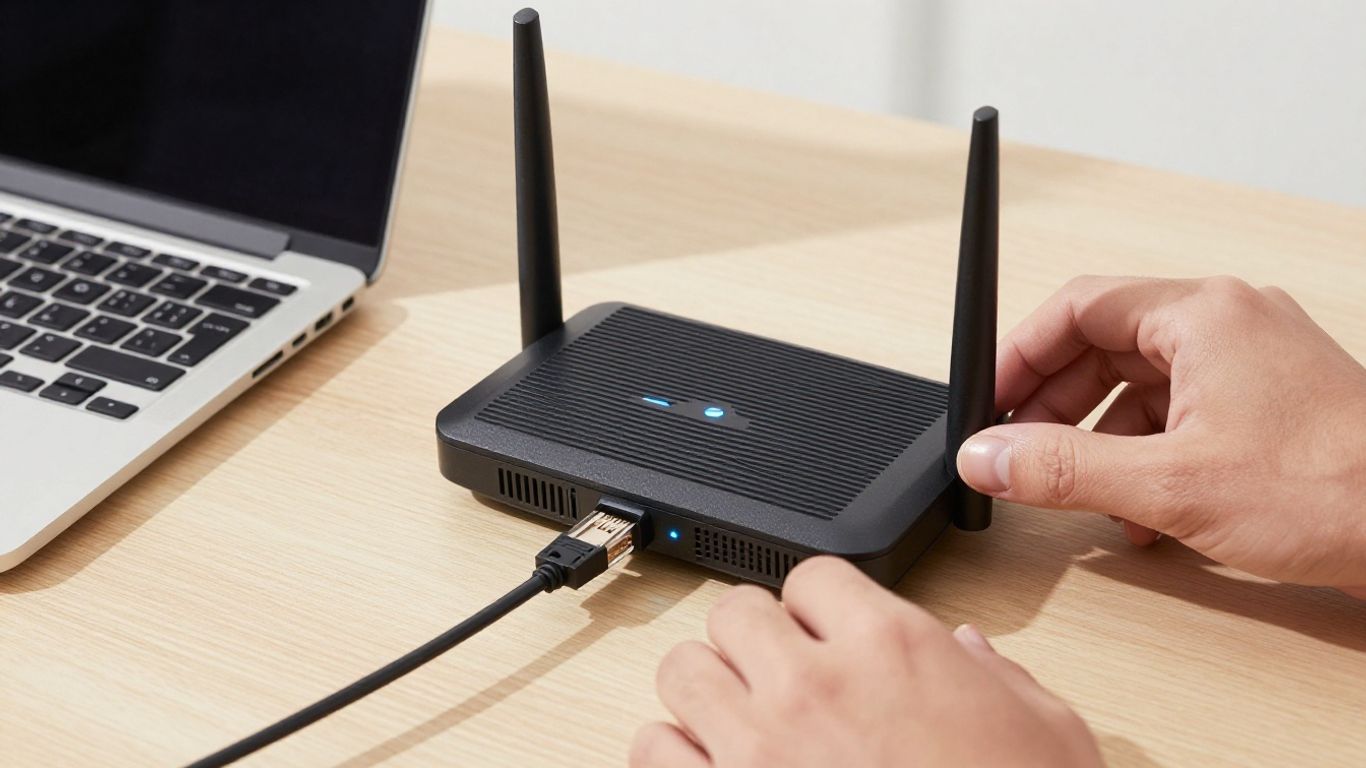
Backing up router settings and checking the current firmware
Export the router’s current configuration if the firmware allows it, and record the ISP login or special service settings separately. Check the installed firmware version and read the release notes or support guidance before beginning. A backup is useful only if you know how to restore it, so confirm that process in advance.
Also write down the current Wi-Fi names, passwords, DHCP range, custom DNS entries, port forwards, and reservations. VPN setup should not erase these details from your working memory. A short inventory can save much longer troubleshooting later.
Getting the correct ExpressVPN configuration details
Use the provider’s current router instructions and obtain the details for the router model and chosen protocol. Depending on the firmware, the form may request a server address, certificate, username, password, key, or separate tunnel parameters. Do not copy values from an unrelated guide simply because the screen looks similar.
Keep credentials private and avoid pasting them into screenshots or support forums. If the instructions offer several protocols, choose one that your router explicitly supports and that fits your priorities for compatibility, speed, and stability.
Installing the VPN profile or router firmware
If your router accepts an imported profile, review the file source and the settings it contains before uploading it. If firmware installation is required, verify the model, hardware revision, and recovery method one more time. Interrupting power during a firmware update can cause a failure that a normal reboot will not fix.
After installation, reconnect to the administration interface and check whether the router retained your LAN and Wi-Fi settings. Do not immediately connect every household device. Start with one test client so that an error has a small blast radius.
Selecting a server location and applying the connection
Choose a location based on the service you need and the distance from your home, rather than assuming that the most distant option is better. A nearby location will often be the sensible starting point for latency-sensitive activity. Apply the connection and wait for the router to report a stable tunnel before testing applications.
Some firmware allows multiple groups or routes, while other setups apply one location to all clients. The interface may also use terms such as policy routing or client rules. Read what each rule does before saving it, especially if the router offers a default route and an exception list.
Verifying the public IP, DNS handling, and device connectivity
Test from a wired client and a Wi-Fi client if both matter to you. Check the public IP address, confirm that DNS requests follow your intended path, and open ordinary websites before testing demanding services. Then test local functions such as printing, casting, file sharing, or smart-home control.
A successful connection indicator is not enough. Verify the result from the client itself, because a router can report an active tunnel while one device follows a different route. If you use a test website, treat it as one diagnostic signal rather than proof of complete anonymity.
Manage routing, exclusions, and household network behavior
The first setup is only the beginning of router administration. Households contain devices with different needs: one may require a stable local route, another may need low latency, and a third may not work through a VPN at all. Clear routing rules prevent the VPN from becoming a source of avoidable household complaints.
Understanding whether every device uses the VPN
Do not infer coverage from the router’s Wi-Fi name. Check the routing table or device policy and test individual clients. Wired devices, guest-network clients, mesh nodes, and devices connected through an additional access point may follow different rules from the main wireless network.
A useful inventory records each device, its network, its intended route, and the date you last verified it. That makes future changes easier and exposes accidental gaps. It also prevents you from promising whole-home protection when only one VLAN or device group is tunneled.
Using split tunneling or device-based exclusions
Split tunneling lets you decide which traffic uses the VPN and which traffic uses the ordinary ISP connection. On a router, the control may be organized by device, group, destination, or policy rather than by application. The more flexible the rule system, the more carefully you need to document it.
Start with a small number of deliberate exceptions. Broad rules are harder to audit and can create unexpected results after a firmware update. After changing an exclusion, test both the public route and the local services that motivated the exception.
Handling printers, smart-home devices, and local network access
Local devices usually need private-network reachability even when their internet traffic uses a VPN. A printer may need discovery from your laptop; a smart-home hub may need to communicate with sensors; and a media server may depend on multicast or broadcast traffic. VPN routing does not automatically preserve all of those behaviors.
Keep local access enabled only where needed, and use client isolation or separate networks for devices that should not communicate freely. If discovery fails, test direct IP access first, then inspect firewall and multicast settings. Avoid weakening the entire network just to make one device visible.
Separating guest traffic from VPN-protected traffic
A guest network is a useful boundary for visitors and less-trusted equipment, but its relationship with the VPN depends on your router’s policies. Decide whether guest clients should use the tunnel, the ordinary ISP route, or neither by default. Then check that guests cannot reach administration pages or private household devices.
The simplest policy is often the easiest to maintain: keep guest access separate, document its route, and test it after major changes. A guest network should not quietly bypass restrictions you intended to apply to the rest of the home.
Checking IPv6, DNS, and kill-switch behavior
IPv6 deserves a specific test because a router may tunnel IPv4 traffic while handling IPv6 separately. DNS settings also need checking: a device can appear to use the VPN’s public IP while still sending name-resolution requests through an unintended resolver. Review both router settings and client results.
A kill switch or equivalent fail-closed rule can prevent traffic from leaving through the ordinary connection when the tunnel drops, but its scope varies by firmware. Test by briefly interrupting the VPN and observing a test client. Restore normal service afterward and confirm that local administration remains possible.
Understand the limits of ExpressVPN on a router
Router-level VPN protection trades per-device convenience for centralized administration. The trade can be worthwhile, but it is visible when the network is busy or an application depends on a particular location. You should measure those effects before moving every device onto the tunnel.
Measuring speed loss, latency, and throughput under load
Run several tests at different times, with and without the VPN, and record latency as well as download speed. A connection that looks fast in isolation may feel poor during a large upload or when multiple devices compete for router CPU. Gaming and calls are often more sensitive to jitter than to headline download numbers.
Use real household tasks as the final test. Stream a video, make a call, transfer a file, and browse from another client at the same time. If performance changes sharply under load, the router or protocol, not necessarily the internet service, may be the limiting factor.
Managing multiple devices and simultaneous connections
Every additional client adds traffic, connection tracking, and sometimes encryption work. Phones may reconnect frequently, televisions may maintain long sessions, and backup tools may upload without obvious user activity. The router must handle the combined pattern, not just the number printed on the box.
Group devices by purpose and test the busiest likely period. If only a few devices need the VPN, selective routing may preserve capacity for the rest. If every device needs it, stronger hardware and simpler policy rules become more valuable.
Accounting for streaming, gaming, and video-call restrictions
A VPN can change the apparent location of a connection, but services may restrict or challenge VPN traffic. Streaming catalogs, authentication checks, latency, and terms of service can vary independently of the router. You should not treat router-level routing as a guarantee that every service will work in every location.
For gaming, latency and route stability usually matter more than a different public IP. For video calls, packet loss and jitter can matter more than raw throughput. Keep an ordinary route available where a particular application is unreliable through the tunnel.
Recognizing router CPU, firmware, and protocol limitations
The router’s processor, memory, firmware implementation, and supported protocol determine much of the experience. A model may advertise high Wi-Fi speeds while offering modest VPN throughput. Mesh systems can add another layer of routing behavior, especially when only the main node understands the VPN configuration.
Read technical limits before assuming that a faster internet plan will improve VPN performance. A protocol supported by your computer may not be supported by the router, and a firmware update can change the available options. Record working settings before updating.
Troubleshooting dropped connections and difficult updates
Start with simple isolation: test one client, one cable, one location, and the router’s ordinary connection. Then check credentials, certificates, time settings, DNS, firmware compatibility, and logs. Rebooting can clear a symptom, but it will not correct a wrong route or expired configuration.
If updates are difficult, keep the backup and recovery instructions nearby. A second router can provide a fallback path while you repair the VPN router, but it also adds complexity. A stable, documented configuration is usually preferable to one with many untested adjustments.
Decide when ExpressVPN on a router is worth it
A router VPN is worth considering when it solves a clear coverage problem rather than simply sounding more complete. You should weigh fixed devices, mobile devices, performance expectations, and your willingness to maintain network rules. The right decision may be a mixed setup instead of an all-or-nothing choice.
Situations where whole-home VPN coverage makes sense
Whole-home coverage can suit a household with several stationary devices that cannot run a VPN app. It may also reduce repetitive setup when the same route is appropriate for many clients. The arrangement is strongest when your router has adequate processing capacity and local services remain easy to reach.
You still need a plan for phones and laptops away from home. Router coverage ends at the home network boundary, so mobile use is a separate decision. That distinction is easy to miss when the installation initially feels comprehensive.
Cases where individual ExpressVPN apps are more practical
Individual apps are more practical when you want device-specific locations, frequent switching, or protection on public networks. They can also make troubleshooting clearer because the VPN state belongs to one device rather than the household gateway. If your home contains mostly modern computers and phones, per-device control may be the cleaner answer.
The app approach does require repeated installation and account management. That cost is usually modest for a small number of devices, but it becomes less attractive when many fixed devices lack app support. Compare the actual list, not an imagined future household.
Comparing a dedicated VPN router with a second-router setup
A dedicated VPN-oriented router generally aims to reduce configuration friction, while a second-router setup lets you retain your existing gateway and route only selected clients. The second option can be economical if you already own suitable hardware, but network discovery and administration are more involved.
Use this comparison to keep the decision concrete:
Arrangement | Main advantage | Main drawback | Best fit |
|---|---|---|---|
Existing router with VPN client | Fewest network devices | May have limited VPN performance | Compatible, lightly loaded homes |
Dedicated VPN router | Simpler purpose-built administration | Requires new hardware | Homes prioritizing central coverage |
Second router behind gateway | Selective routing and fallback | More complex subnets and local access | Homes needing mixed routes |
Individual device apps | Flexible per-device control | Repeated setup and mobile management | Small, app-friendly device groups |
The table is a decision aid, not a guarantee of performance. Your exact firmware, internet service, and household traffic still determine the result.
Weighing subscription cost, maintenance, and performance
Budget for more than the VPN subscription. Hardware, electricity, replacement cycles, troubleshooting time, and occasional firmware work all belong in the calculation. A lower-cost arrangement can become expensive in attention if every change breaks printing or streaming.
Before committing, ask yourself four practical questions:
Which devices genuinely need router-level routing?
What speed and latency can those devices tolerate?
Who will maintain the router and restore it if setup fails?
Which local services must continue working without special effort?
Your answers reveal whether the convenience is real. They also help you avoid buying hardware for a problem that a single app would solve.
Making the decision based on privacy needs and device mix
Choose router-level coverage when broad, consistent routing matters more than granular control and your hardware can handle the load. Choose individual apps when mobility, different locations, and application-level exceptions matter more. Choose a hybrid when fixed devices and mobile devices have different requirements.
The sensible choice is the one you can verify and maintain. A smaller, well-tested configuration is preferable to a whole-home tunnel that quietly breaks essential devices or delivers unacceptable performance.
Conclusion
An expressvpn router setup can be a practical way to route selected or connected household devices through a VPN, particularly when those devices cannot run an app. Before you proceed, confirm hardware support, test performance, plan local-network access, and decide whether whole-home coverage is actually necessary. If the network becomes harder to operate than the privacy benefit justifies, individual apps or a hybrid arrangement may be the more sensible route.
Frequently Asked Questions
Does a VPN router protect every device in the home?
Not automatically. Coverage depends on the router’s routing rules, the network to which a device is connected, and whether exceptions or separate guest networks are configured.
Will a router VPN slow down my internet?
It can. Encryption, protocol handling, router hardware, distance to the VPN server, and simultaneous household traffic may reduce throughput or increase latency.
Can devices still communicate with my printer after setup?
Usually they can, but local discovery and firewall rules may need adjustment. Test printing and device discovery rather than assuming the VPN preserves every local-network feature.
Is a second router necessary for VPN coverage?
No. A supported router can often run the VPN directly. A second router is one option when you want to keep the ISP gateway or separate VPN-routed devices from ordinary traffic.
Should every device use the same VPN location?
Not necessarily. Some routers apply one location to all clients, while others support device or group rules. Individual apps generally provide more granular control.
What should I test after configuring a VPN router?
Check the public IP, DNS behavior, IPv4 and IPv6 routing, ordinary browsing, local services, and behavior when the VPN connection drops.
Is router-level VPN protection better than using apps?
Neither is universally better. Router-level routing suits fixed devices and broad coverage; apps suit mobile use, per-device choices, and households that need frequent exceptions.
If you make a purchase via one of these links, we may earn a commission, at no extra cost to you. Learn More