Does NordVPN Work With Netflix? What Actually Streams

NordVPN can work with Netflix, but access is not permanent or identical across every device and server.
Netflix libraries vary by country because licensing differs.
A VPN connection may show a proxy error when Netflix recognizes its IP address. For a side-by-side view, see our NordVPN review.
A working server in one country does not guarantee that every server there will work.
Clearing cookies, app data, and location information can resolve some regional errors.
You should judge the service by the library, device, stability, and price you actually need.
What NordVPN’s Netflix support really means
Yes, NordVPN can work with Netflix, but “support” does not mean that every title or country will be available whenever you connect. Netflix controls the catalogue shown to you, while the VPN changes the apparent location of your connection. The result can therefore change from one server, device, or day to the next. That comparison is set out in our Surfshark review.
Why Netflix libraries differ by country
Netflix does not offer one identical catalogue worldwide. Licensing agreements, local distribution rights, and release arrangements determine which films and series appear in each country. A title may be included in one catalogue but absent from another, even though you use the same Netflix account and subscription.
The account itself is not necessarily the deciding factor. Netflix generally uses information about your current connection and region when it determines which catalogue to display. That is why a change in apparent location can alter the selection without changing your profile or payment details.
How Netflix detects and blocks VPN connections
Netflix can identify patterns associated with VPN and proxy traffic, including IP addresses used by many customers at once. When an address is recognized, you may see a proxy-related message, an incomplete catalogue, or a title that refuses to play. A normal Netflix account does not remove that detection.
A block can affect only one server address rather than the whole service. That distinction matters: a failed connection is evidence that the current route is not working for Netflix, not necessarily that every route from the provider has failed.
What NordVPN’s SmartPlay feature does
SmartPlay is described as a feature that combines VPN and Smart DNS technology to help provide access to geo-restricted content. In practical terms, it is part of the connection setup rather than a promise that Netflix will accept every server. You still need to check the catalogue and playback on the device you intend to use.
You can also read a broader NordVPN review if privacy, server features, and general VPN use matter alongside streaming. Keep those questions separate: a service can be useful for securing a connection while a particular Netflix route is temporarily unavailable.
Why access can change without warning
Netflix continually updates its detection systems, and IP addresses can change ownership or reputation. A server that displayed a regional catalogue last week may show your home catalogue today, or it may produce a proxy error instead. Content licensing can change independently of the VPN connection as well.
That makes any claim of permanent access too strong. Test the exact country, title, app, and network you care about, and treat the result as a current observation rather than a lifetime guarantee.
Which Netflix libraries NordVPN can access
The practical answer to “nordvpn netflix” is that access may include popular regional libraries, but the exact result depends on the server and Netflix’s current blocks. The US is often the first library people test, while the UK, Canada, Australia, and other regions may produce different results. You should verify the catalogue instead of relying on a list copied from an older review.
Netflix US: the most commonly requested target
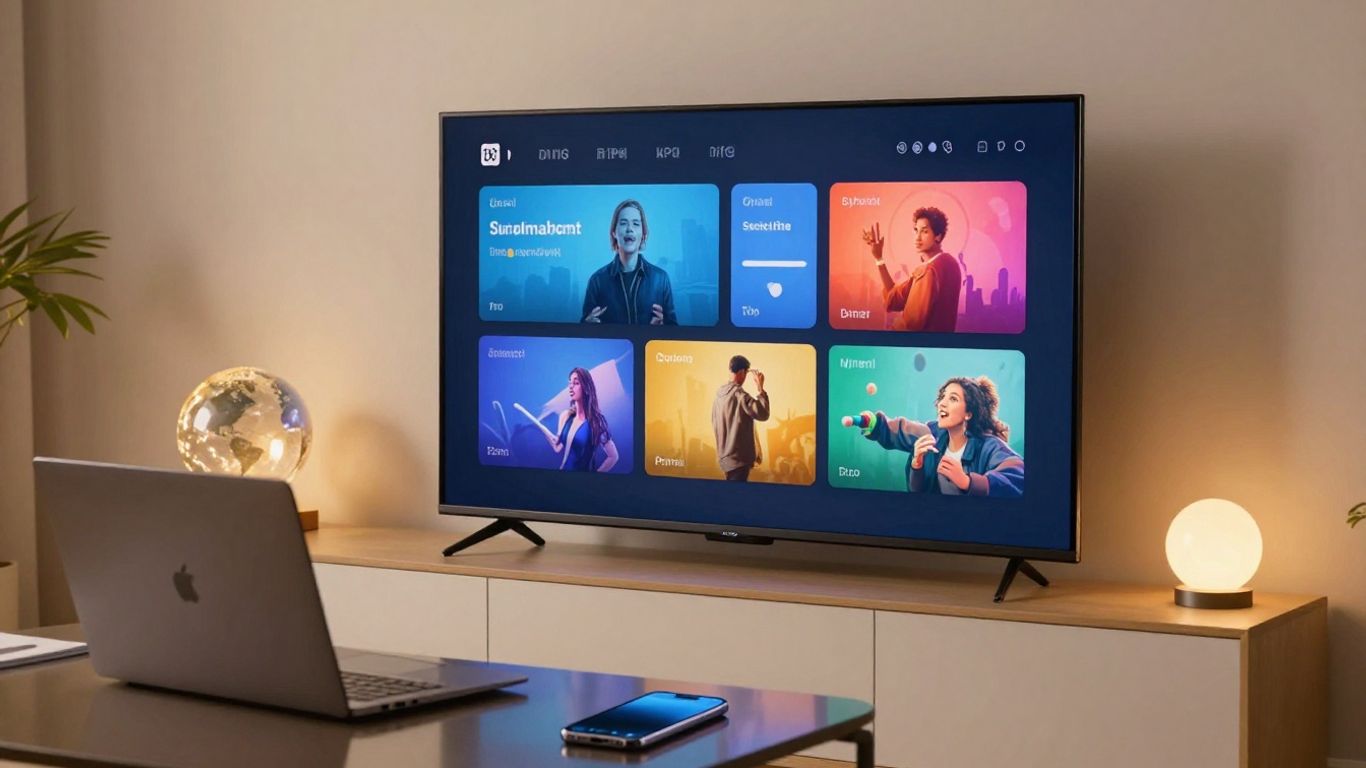
Netflix US is a frequent target because its catalogue can differ substantially from the one available in other countries. Connecting to a US server may change what Netflix displays, but a US IP address alone does not prove that the desired title will play. Search for a title with known regional differences after connecting, then start playback.
If Netflix still shows your usual catalogue, close the browser or app and reconnect before testing again. If it shows a proxy warning, try a different server rather than repeatedly reloading the same page.
UK, Canada, Australia, and other regional libraries
The same principle applies to the UK, Canadian, Australian, and other catalogues: choose the relevant country, connect, and inspect the result on your own device. The presence of a country in a provider’s server list does not automatically mean that Netflix will accept every address in that country.
Regional access can also be less useful than it sounds if the specific film or series you want is absent from that catalogue. Search by title, not only by country name, and remember that Netflix may display a different selection after a short delay while the connection is being refreshed.
Originals versus locally licensed titles
Netflix Originals are not always identical in every region, and the label does not guarantee worldwide availability. Local licensing can still influence whether a title appears, which audio or subtitle options are offered, and how the programme is categorized.
For a fair test, use a title that you have confirmed is available only in the target country. That gives you a stronger signal than comparing general recommendations, because recommendations can change for reasons unrelated to the VPN.
Why one NordVPN server may work while another fails
Individual server IP addresses have different histories with streaming services. One address may be accepted while another has already been classified as proxy traffic, even when both are in the same country. Server load and routing can also affect whether a video starts smoothly.
A simple comparison can keep expectations realistic. The table below describes what each result tells you rather than promising a particular outcome.
Test result | What it may indicate | Sensible next step |
|---|---|---|
Target catalogue and playback work | The current route is accepted for that test | Record the server and device used |
Target catalogue appears but playback fails | Detection, app state, or routing issue | Reconnect and test another server |
Home catalogue remains visible | Region data has not refreshed | Close Netflix and clear relevant data |
Proxy or unblocker error appears | The current IP may be blocked | Switch servers and test again |
Nothing loads, including ordinary pages | General connection problem | Check the VPN and local network first |
The useful conclusion is narrow: a successful test confirms one working combination of server, account, app, device, and network. It does not certify every combination.
How to test NordVPN with Netflix properly
A careful test takes only a few minutes and avoids confusing a catalogue issue with a general playback fault. You need a known target title, a clean enough app or browser state, and a comparison with the VPN disconnected. Test the complete setup, not just the VPN switch in your app.
Use a title that is available only in the target country
Pick a film or series that you have independently checked as available in the country you want to test. A title available everywhere cannot tell you whether the regional change worked. Write down the title before connecting so that changing recommendations does not influence your judgment.
Then connect to the target country and search for that title directly. A successful search is useful, but playback is the stronger test because Netflix can permit catalogue browsing while blocking the stream itself.
Check the Netflix catalogue after connecting
Connect the VPN before opening Netflix, then compare the visible catalogue with the one you saw while disconnected. Look at search results, a few country-specific titles, and the Top 10 selection if it is available. Do not assume that the first homepage row is a complete picture of the region.
If the catalogue appears unchanged, close the tab or app and start a fresh session. Netflix can retain location-related information temporarily, so a quick refresh may not be enough to force a new regional check.
Compare browser, mobile, smart TV, and streaming-device results
Netflix may behave differently in a browser, on a phone, on a smart TV, or through another streaming device. Some devices route DNS requests or location signals differently, while others may use settings that you cannot easily inspect. Test the device you actually plan to watch on rather than treating a laptop result as universal.
Keep a short record of the variables. Note the country, server, device, connection type, title, and exact error. This turns a vague “Netflix does not work” complaint into a reproducible result that is easier to troubleshoot.
Distinguish a VPN error from an ordinary Netflix playback problem
First disconnect the VPN and play a title that is normally available to you. If playback still fails, the problem may be your account, Netflix, device, home network, or internet connection rather than the regional route. If playback works normally without the VPN but fails only after connection, the VPN path becomes the more likely cause.
A slow stream, an app crash, and a proxy error are different symptoms. Treating them as the same problem usually leads to repeated retries without useful information.
How to use NordVPN with Netflix
The basic process is straightforward: select a country, establish the VPN connection, open Netflix, and test a title. The difficult part is not finding the connect button; it is confirming that the catalogue and playback match your purpose. You should also respect Netflix’s terms and the laws that apply where you live.
Choose the target country and connect to a nearby server
Choose the country whose catalogue you want to inspect, then select a nearby server within that country where possible. A shorter physical route often helps with responsiveness, although it cannot by itself make a blocked IP acceptable to Netflix.
Wait until the VPN application confirms that the connection is active before opening Netflix. If the connection drops, pause the test and reconnect rather than assuming that Netflix is still using the intended route.
Sign in to Netflix only after the VPN connection is active
Opening Netflix after the VPN is active gives the service a clearer opportunity to evaluate the intended connection. If you signed in first, close the browser or app after connecting and start a new session. This is a practical troubleshooting step, not a guarantee of a catalogue change.
Your Netflix profile and subscription remain relevant to what you can watch. A VPN does not turn an unavailable subscription tier, missing language track, or account restriction into a different entitlement.
When NordVPN’s recommended server is useful
A recommended server can be a convenient first attempt when you do not want to compare addresses manually. It gives you a starting point, especially if you are unfamiliar with the provider’s server selection. The result still needs to be checked against a title and device that matter to you.
If that server produces a proxy message, do not keep refreshing it indefinitely. Move to another server in the same country and repeat the clean test once.
What to do when Netflix shows the wrong regional catalogue
Close Netflix completely, disconnect and reconnect to the selected country, then open a fresh browser window or restart the app. If the old catalogue remains, clear the relevant cookies or app data and check whether location permissions or DNS settings are overriding the VPN route.
A new profile can sometimes provide a cleaner comparison, but frequent region switching on one profile may create confusing results. Change one variable at a time so you know which step affected the catalogue.
Why Netflix may not work with NordVPN
A failed test does not have one universal cause. Netflix may be rejecting the current IP, your device may be retaining old location data, or the VPN may not cover every part of the connection. Work from the simplest explanation first and avoid changing five settings at once.
The connected server’s IP address may be blocked
The most direct explanation is that Netflix recognizes the server IP as belonging to a VPN or proxy network. In that case, your internet may work perfectly while Netflix refuses to load a title or displays a proxy error. Switching to another server is more useful than repeatedly refreshing the same address.
This is also why user reports can conflict. Two people may select the same country but receive different IP addresses and therefore different Netflix results.
Cookies, DNS data, and location permissions can reveal your real region
Cookies and cached app data can preserve an earlier region, while DNS requests may follow a different route from the main VPN traffic. A browser can also use location permissions, depending on its settings and the website’s request. These signals do not all behave identically on every device.
Clear only the relevant data first, then retest. If the result changes after a clean session, the earlier failure may have been caused by retained location information rather than the server itself.
Split tunneling and conflicting VPN settings can bypass the connection
Split tunneling can exclude an application from the VPN tunnel. If the Netflix browser or app is excluded, it may continue using your ordinary connection while another application appears protected. A second VPN, security product, proxy, or browser extension can create a similar conflict.
Review the active network settings and temporarily remove overlapping routes during testing. Once you identify the cause, restore only the settings you actually need.
Device and network restrictions can affect streaming access
A workplace, school, hotel, or managed home network may restrict VPN traffic or streaming services. Smart TVs and streaming devices may also provide fewer controls for clearing data, changing DNS, or installing a VPN application. The same account can therefore behave differently across networks and hardware.
Compare the result on a phone or computer using a different network. That comparison helps separate a device or network restriction from a Netflix account issue.
How to fix NordVPN Netflix errors
Start with low-risk changes and retest after each one. A useful sequence is to change the server, create a clean Netflix session, inspect DNS and location settings, and then update the applications. The goal is to identify the failing layer, not to apply every internet tip you have seen.
Switch servers instead of repeatedly refreshing the same one
Disconnect from the current server and choose another server in the same target country. Give the connection time to establish, then close and reopen Netflix before checking the same title. If several servers fail in one country, test a different country or disconnect entirely to confirm that ordinary Netflix access still works.
Do not treat one failed IP address as a final verdict on the whole service. Conversely, do not treat one successful address as a permanent guarantee.
Clear Netflix cookies, app data, and cached location information
In a browser, remove Netflix site data or use a private window for a controlled test. On a mobile device, clear the app cache or app data where the operating system allows it; on some devices, reinstalling the app is the practical equivalent. You may need to sign in again afterward.
Use this step when the catalogue stays stuck on the previous region or when a proxy error persists after changing servers. Test immediately after the cleanup so that you can see whether the change helped.
Check DNS, IPv6, and browser location settings
A DNS leak test can show whether DNS requests are leaving through the expected route, although the result should be interpreted alongside the Netflix behavior. Check whether IPv6 is active outside the VPN path and review browser location permissions. Also disable any proxy or DNS-over-HTTPS setting that conflicts with your test configuration.
These settings vary by operating system and browser. If you are unsure which setting controls the result, change one item, restart the connection, and repeat the title test.
Update or reinstall NordVPN and the Netflix app
An outdated application can contain connection or compatibility problems that are not fixed by refreshing a webpage. Update both applications where updates are available, restart the device, and test again. If the problem remains isolated to one app, reinstalling it can remove corrupted local data.
Keep a note of the error message before reinstalling. That detail can be more useful than a general description if you later need technical help.
When changing networks or contacting support is the practical next step
If the VPN works on one network but not another, try a different connection, such as mobile data, to isolate the restriction. If every device and server produces the same result while ordinary Netflix works without the VPN, contact the VPN provider or Netflix support with your test details.
Have the country, server, device, operating system, app version, title, and error message ready. Clear evidence saves time and avoids being asked to repeat steps you have already completed.
Is NordVPN a sensible choice for Netflix streaming?
It can be sensible if you value the possibility of testing regional catalogues and also want a general VPN service. It is less sensible if you require one specific title to work continuously, because availability depends on Netflix’s detection and licensing decisions. Your decision should rest on observed performance and the provider’s current terms, not on an unconditional “works everywhere” claim.
Streaming performance, video quality, and connection stability
Streaming quality depends on your base connection, distance to the server, congestion, device, and the route between the VPN and Netflix. A VPN can add overhead, so test at the time and location in which you normally watch. Check whether the stream starts promptly, maintains quality, and remains stable for more than a few minutes.
A strong result means more than a fast speed test. You want the combination of regional access, acceptable picture quality, and a connection that does not drop during ordinary viewing.
Supported devices and simultaneous connections
Before subscribing, check whether the applications or setup options cover your television, phone, computer, and any streaming device you use. Device support is practical rather than theoretical: a route that works in a browser may not be convenient on a television. Also review the current simultaneous-connection allowance and whether it fits your household’s use.
If you watch on several devices, test the most restrictive one first. There is little value in a successful laptop test if your actual viewing device cannot use the same connection method.
Privacy benefits that are separate from Netflix access
A VPN and Netflix are separate decisions. A connection may offer privacy or security features while still failing to display a particular regional catalogue, and successful streaming does not prove anything about the service’s wider privacy practices. Review those claims independently, including the provider’s policies and any relevant audits.
For browser-specific use, you may also want to compare the practical considerations in this guide to VPN extensions for Chrome, especially if Netflix testing happens mainly in a desktop browser. Do not mistake a browser extension for coverage of every application on your device.
Subscription cost, refunds, and the risk of changing availability
Check the total subscription price, renewal terms, refund conditions, and any limits that apply before you pay. Promotional pricing may not describe the later renewal price. Netflix access can also change during your subscription, so you should not buy a long plan solely for one untested catalogue.
A sensible approach is to test during any applicable refund period and keep your expectations specific. You are evaluating a changing technical route, not purchasing permanent rights to another country’s Netflix library.
When another VPN or a direct Netflix subscription makes more sense
If a particular catalogue is essential, compare current test results from services you are legally able to use and read their terms carefully. If you only want the titles included in your normal region, a direct Netflix subscription without a VPN is simpler and usually easier to troubleshoot. The right choice depends on whether regional access, privacy, convenience, or cost is your primary reason for subscribing.
Do not let a single successful demonstration settle the decision. Test the title, device, network, and billing conditions that match your real viewing habits.
Conclusion
NordVPN can work with Netflix, but access is conditional rather than guaranteed: the server IP, Netflix catalogue, device, app state, and network all matter. Test a country-specific title, switch servers when necessary, clear stale location data, and judge the service by your actual setup before committing to a subscription.
Frequently Asked Questions
Does a VPN change my Netflix subscription?
No. A VPN changes the apparent network location used during the connection, but it does not change your plan, account rights, payment details, or profile settings.
Why does Netflix show a proxy or unblocker error?
Netflix may have identified the IP address as associated with VPN or proxy traffic. The current server can therefore be rejected even when your internet connection works normally.
Can the Netflix catalogue change while I am traveling?
Yes. Netflix may show content based on the region in which you are connecting, subject to its licensing arrangements and any applicable travel or regional rules.
Why does a title appear but fail to play?
Catalogue browsing and playback can be treated differently. The route may be accepted for searching but blocked when the video request begins, or the problem may involve the app, device, or network.
Will clearing cookies always fix regional access?
No. Clearing cookies can remove stale session information, but it cannot make Netflix accept an IP address that it has blocked. It is one diagnostic step among several.
Is a fast VPN connection enough for streaming?
No. You also need a route that Netflix accepts, stable performance, suitable device support, and a catalogue containing the title you want to watch.
Should I use a VPN for every Netflix session?
Only if it serves a clear and lawful purpose for you. If the VPN introduces errors or reduces convenience and you do not need regional access, using Netflix directly may be the simpler option.
Related reading
What the provider itself claims about streaming, and what we could verify, is in our NordVPN review.
There is a second mechanism for this problem with different trade-offs; we compared smart DNS against a VPN.
For how the providers compare on everything other than streaming, see the ranking.
If you make a purchase via one of these links, we may earn a commission, at no extra cost to you. Learn More